- Content authors require to install AEM Sidekick extension in the browser. Use the below links to install the extension.
- Chrome Browser: https://chromewebstore.google.com/detail/aem-sidekick/igkmdomcgoebiipaifhmpfjhbjccggml
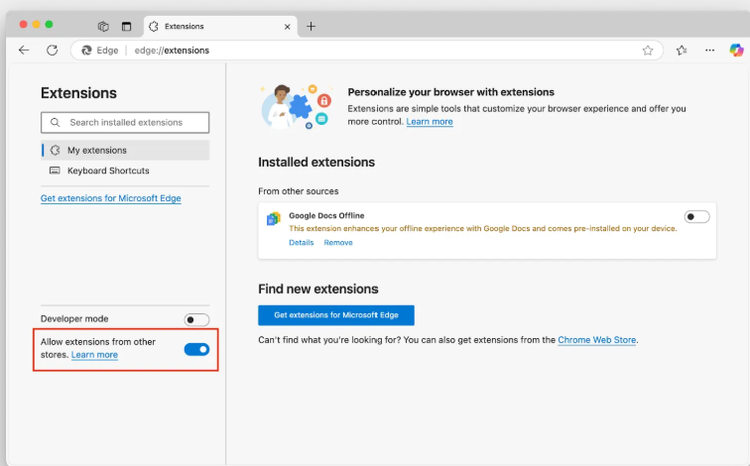
- Edge Browser: To install the Sidekick extension into your Microsoft Edge Browser, you need to enable the following option to "Allow extensions from other stores" under edge://extensions in your URL bar. Once that setting is enabled the sidekick can be installed from the Chrome web store.
-
Once extension is installed, pin the extension to your search bar so it is easy to open. This AEM Sidekick extension is required whenever author wants to preview or publish the content.
- Important Links
- Content SharePoint site
- Preview url
- Live urls
- Process to preview the changes
- Login into Ford Philanthropy Sharepoint site
- Edit and save the document
- Click on the Sidekick extension which is pinned to browser search bar. This will open a tool bar bottom of screen as shown in below image
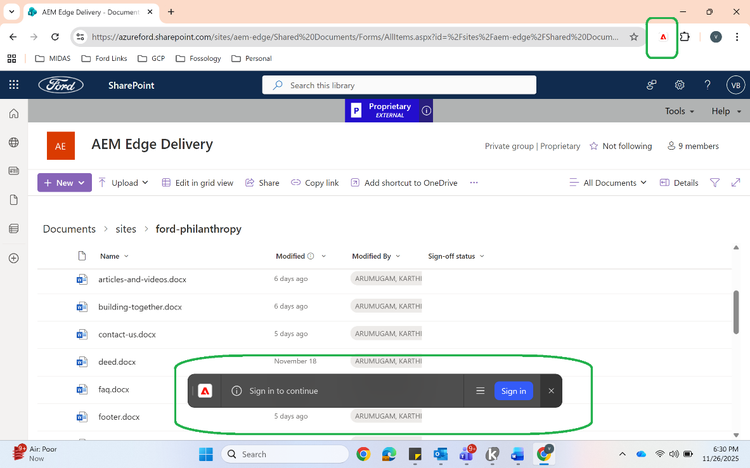
- Click on “Sign in” button on tool bar and authenticate. Once the authentication is completed, the tool bar will show the options like below:

- Select the document which needs to be previewed. Once the document is selected, tools bar will show the following options:
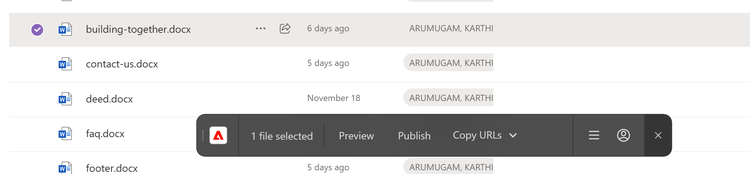
- Click on Preview button. It will show the below message at tools bar. Preview screen can be opened from here which will automatically open in new tab or copy url and open in browser manually:

- Once the testing is completed in Preview url (https://main--ford-philanthropy--ford-innersource.aem.page/), Publisher can publish the page which will make the changes live
- Below document has the different structure available to design the content for author.